



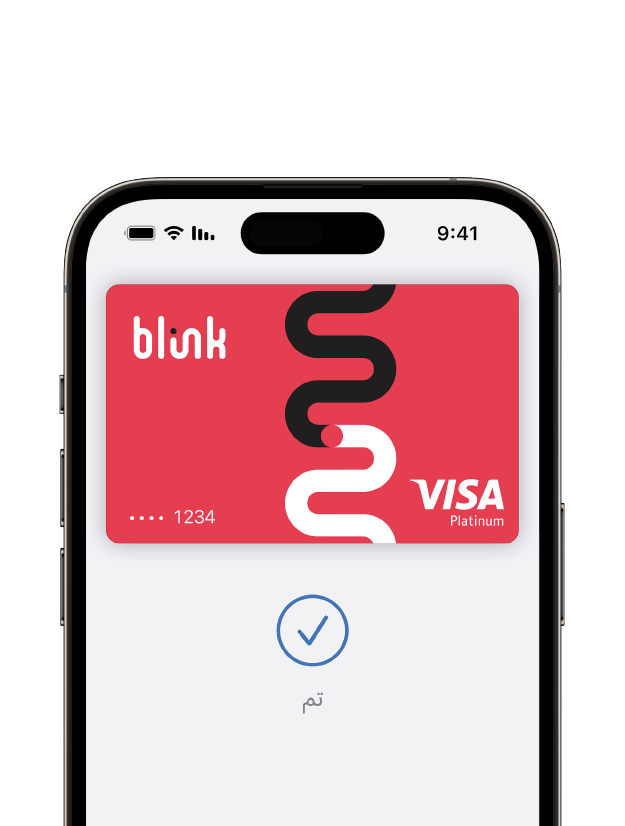
Apple Pay
How to pay in the fastest way possible?
All you have to do is:
-
Make sure that there is a contactless sign on the point-of-sale machine, to ensure it accepts such transactions.
-
Double-click the side button.
-
When your default card appears, glance at iPhone to authenticate with Face ID, fingerprint or enter your passcode.
-
Hold the top of your iPhone near the card reader until you see Done and a checkmark on the screen.
-
Wait until you hear the beep or the lights go on signaling that the transaction is successful.
Apple Pay is also available for online payments, to pay in apps and on the web with your Apple devices, select Apple Pay as the payment method during checkout and complete the payment with your biometric ID, or your passcode.
Setting up Apple Pay
Blink mobile application:
- Go to card setting
- Tap on add to Apple Pay icon
- Select the device you want to add your card to (iPhone/Apple Watch)
- Accept the T&C and follow the verification process
- After the verification is done, your Apple Pay is now ready to be used
Apple Pay wallet:
To add your Blink card to Apple Pay, all you have to do is:
- Go to the Wallet app and tap +
- Follow the steps to add a new card
- Tap next – we will verify your information and might ask for more information
- After the verification has been done, tap next
- Your Apple Pay is now ready to be used
The safest way to transact:
- Your card details are kept private and never stored in Apple Pay or shared with merchants
- Every Apple Pay transaction requires you to authenticate with your biometric ID or your passcode
- Real-time purchase alerts keep you on top of your account details. You can also view your transactions in the Wallet
Most importantly, you will be able to protect all of your bank account information even if you lose your device. In case of such an event, make sure to factory reset your device or enable Lost Mode through Find My iPhone to stop Apple Pay.
Download Blink today, open your account in a few steps, and start enjoying Apple Pay!
Terms and Conditions
Click here to view T&C's
What is Apple Pay?
Apple Pay, is a mobile contactless payment solution that enables customers to make in-store, in apps, and on the web purchases with select Apple devices. You can use Apple Pay everywhere contactless payments are accepted. In stores, you can use Apple Pay on your iPhone or Apple Watch. Within apps, you can use Apple Pay on your iPhone, iPad, and Apple Watch. Within websites in Safari, you can use Apple Pay on your iPhone, iPad, and Mac.
How is Apple Pay secure?
Apple Pay does not send your actual credit or debit card number with your payment, instead, a virtual card number is used to represent your account information – so your card details stay safe. Moreover, you need to authorize every transaction by Touch ID or your passcode.
How does Apple Pay work?
Apple Pay uses Near Field Communication (NFC) to make contactless mobile payments. This ensures that Apple Pay will work everywhere contactless payment are accepted.
Can I configure Apple Pay on multiple devices?
Yes, you can configure and use Apple Pay on multiple devices.
Do I need to be connected to Wi-Fi or my cellular data network to use Apple Pay?
You would need an internet connection to enroll cards / disable cards from Apple Pay and to check card available balance / limit. To make Apple Pay transactions, you do not need to have a cellular data or Wi-Fi connection. Please note that Apple Pay may require you to periodically login to the app and connect to the internet with your device to keep the app active.
Are there any charges for Apple Pay?
No charges for using Apple Pay.
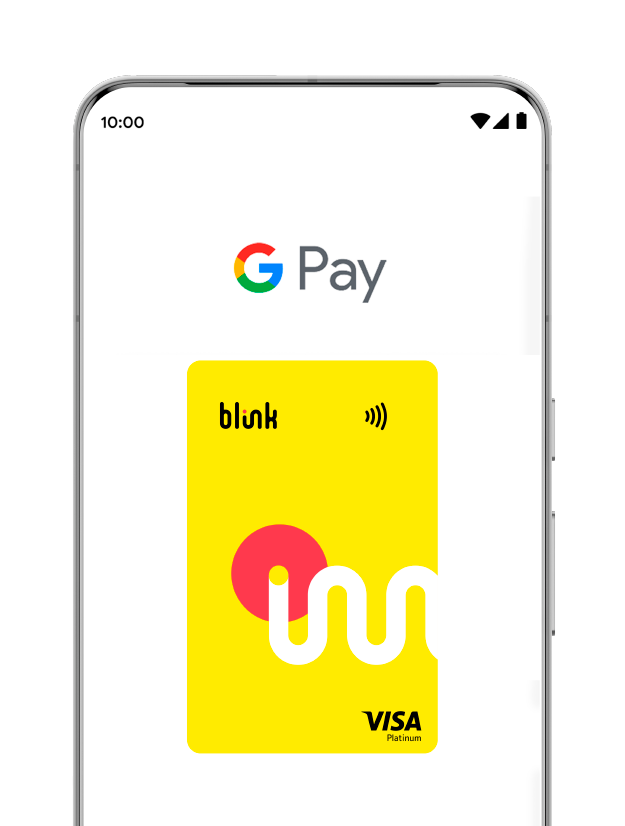
Google Pay
Blink introduces a new, safe, and efficient contactless payment solution in partnership with Google Pay — designed to make your everyday transactions with Blink cards faster, easier, and more seamless than ever!
Main Benefits:
- Easy and convenient.
- Fast and secure technology.
- Accepted anywhere at any point of sale that accepts contactless payments.
How to use it:
- Look for the contactless symbol on any point-of-sale terminal.
- Wave or tap your phone at the terminal.
- Wait for a beep or light indicator to confirm the payment is complete.
How to add your Blink card to Google Wallet:
First, set up Google Wallet App:
- Download Google Wallet™ App.
- Open the Google Wallet™ App and set up a screen lock.
- Make sure your phone supports NFC and that it’s enabled for in-store purchases.
Second, add your Blink card on Google Wallet available on your Android Phones
- Open the Google Wallet™ app and sign in with your Google account.
- Add your Blink card by taking a photo or entering the details manually.
- Review the information and accept the Terms and Conditions.
- Enter the authentication code and submit.
- Your Blink card is now ready to use with Google Wallet.
What is Google Pay?
Google Pay is a contactless payment service that allows users to make purchases using their Android smartphones through the Google Wallet app.
Who can use Google Pay?
All blink Bank cardholders who use Android devices with NFC capability can use the service.
How can I set up Google Pay?
You need to download the Google Wallet app, enable NFC on your phone, and then add your Blink Bank card.
Is Google Pay safe?
Yes, Google Pay uses encrypted, secure technology. Your actual card details are not shared with merchants.
Can I use Google Pay internationally?
Yes, you can use it at any merchant or point-of-sale terminal that accepts contactless payments, locally and globally.
What types of cards are supported?
All Blink Bank debit and credit cards are supported.
Is there a fee to use Google Pay?
No, using Google Pay is free of charge.
What should I do if I lose my phone?
You should immediately use Google’s Find My Device service to lock or erase your phone. Your card details will remain protected.
Can I add more than one card to Google Wallet?
Yes, you can add multiple cards and select a default card for payments.
What are you waiting for? Let's Blink!


Join our community
Paper, queue and hassle free!